To play a DVD on a computer, insert the disc into your internal or external drive and use media software like VLC Media Player to play it. Windows 10/11 does not include native DVD playback, making free software like VLC essential for watching DVDs. If your computer lacks a drive, you will need a USB external DVD drive.
Steps to Play a DVD on Windows/Mac:
- Insert the DVD: Place the disc into the computer's DVD drive.
- Use an External Drive (If needed): If your laptop has no drive, plug in an external USB DVD drive.
- Install Player Software: Download and install VLC Media Player (free, open-source).
- Open the Player: Open VLC Media Player.
- Play the Disc:
-
Click on Media in the top menu, or File if you are on a Mac, then select Open Disc.

-
Ensure "DVD" is selected under Disc Selection and click Play or Open if you are on a Mac

Frequently Asked Questions
You will need to purchase an external USB DVD drive. Basic models can be found for about $15 - $20 USD.
You will need some type of DVD player app on your computer to play the DVD. We have found VLC Player to be the best free option. Older Windows computers may still have PowerDVD installed to play DVDs. Other free options are available in the Microsoft store.
Apple still includes the DVD Player application on new Macs, even though modern macOS versions (like Sonoma and Sequoia) have hidden it. It is not found in the main Applications folder but is still available in the system files to work with external USB drives.
Screensharing via Zoom, Google Meet, etc, is not possible with the Apple DVD Player app. You will see a gray screen if you try. However, screensharing is possible with VLC Player.
Video playback quality is better on VLC Player compared to Apple DVD Player.
The files in the Video_TS folder in the DVD are files specific to the DVD and will not play correctly if you try to open them. You need to open the disc in a DVD player application to be able to play the DVD correctly.
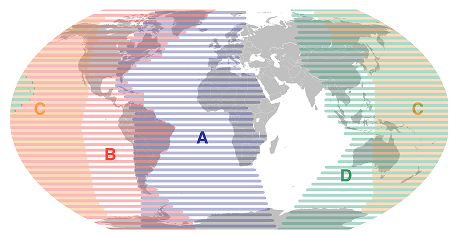
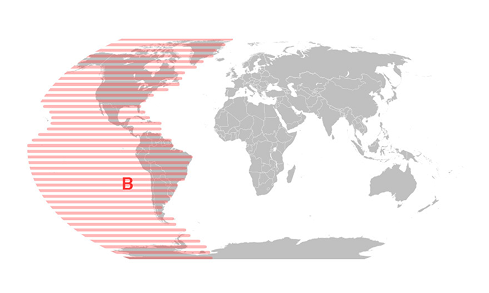
Map of Regions